

The lionbackup Wizard on the Mac: beta-tested
The lionbackup Wizard now runs natively on the Mac: set up, back up encrypted, back up on a schedule, restore. We beta-tested it on a Mac mini with an M1 chip running macOS 27. We release the download as soon as a customer wants to use it.
Published 24 November 2026 · ← Blog
On the Mac it is the same wizard as on Windows and Linux: the same overview, the same nine steps, the same lionbackup client underneath. Two things work differently on the Mac, the schedule and the protection of folders such as Documents or Downloads. This post is mostly about those two, and about what is still missing.
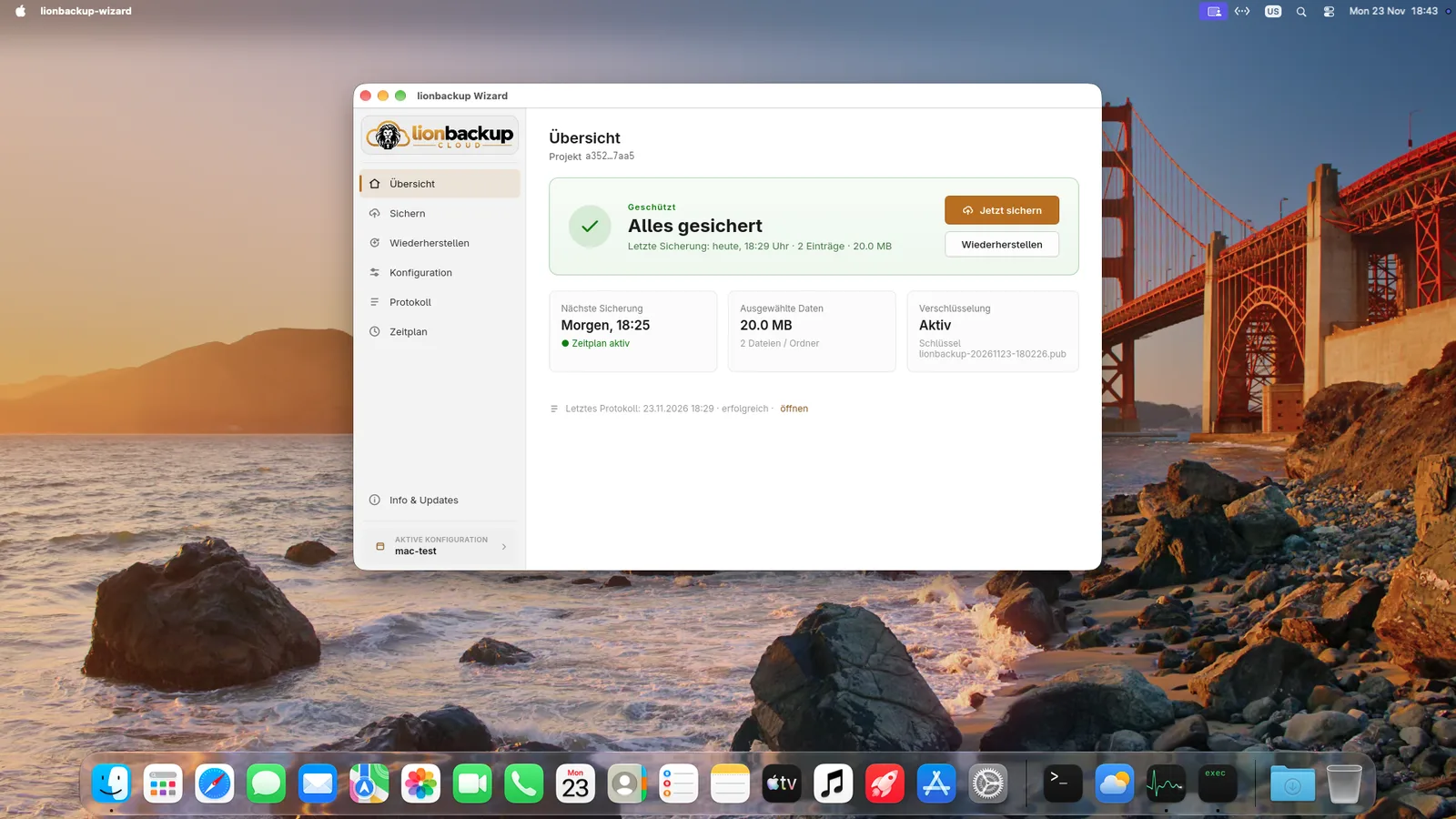
Nine steps to the first backup
The assistant has the same nine steps as on the other systems, from Welcome to Summary. Along the way the wizard takes care of the fiddly parts:
- It downloads the lionbackup client and checks its SHA-256 checksum.
- You paste the token from the portal, and it works out the project and storage zone itself.
- You pick your files and folders in the native macOS dialogs.
- A compression test in Fine-tuning recommends a method.
After that you back up with one click, restore from the list of backups, and find the configuration, the log and About & updates in the sidebar.
Encrypted before anything leaves the Mac
In the Encryption step the wizard creates your key pair and offers to save a backup copy of the private key. Encryption is end to end, on the Mac, with the post-quantum hybrid of ML-KEM-768 and X25519. Only ciphertext leaves your Mac.
The schedule runs through launchd
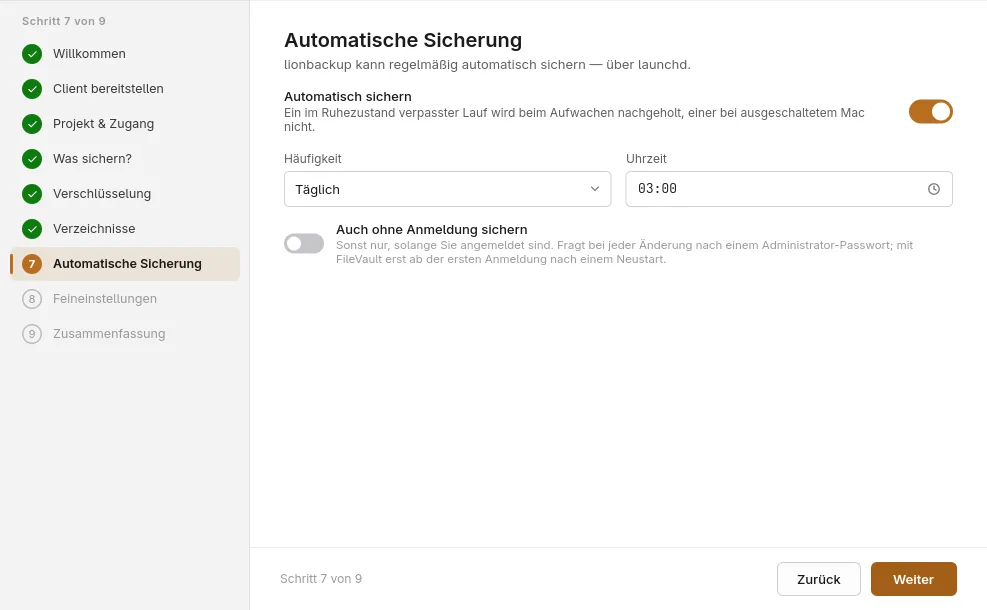
For automatic backups the wizard sets up a job in launchd, the service macOS itself uses to start scheduled tasks. You do not need to keep the wizard open.
- By default while you are logged in. The backup runs under your user account while you are logged in to the Mac.
- Optionally also while logged out. With Also back up while logged out it runs from startup, still as your user and not as root. You confirm every change to this switch with an administrator password. With FileVault this starts only after the first login following a restart, because macOS keeps the disk locked until then.
- Sleep is caught up. If your Mac is asleep at the scheduled time, it backs up when it wakes. A run missed while the Mac was switched off is not caught up.
- Daily, weekly or monthly. Monthly also on the last or second-to-last day of the month.
When macOS asks for permission
macOS gives Documents, Desktop, Downloads, iCloud Drive and external drives extra protection. Before a program may read there, macOS asks once, for each folder and each version of the client. At 03:00, though, you are unlikely to be at the Mac to answer.
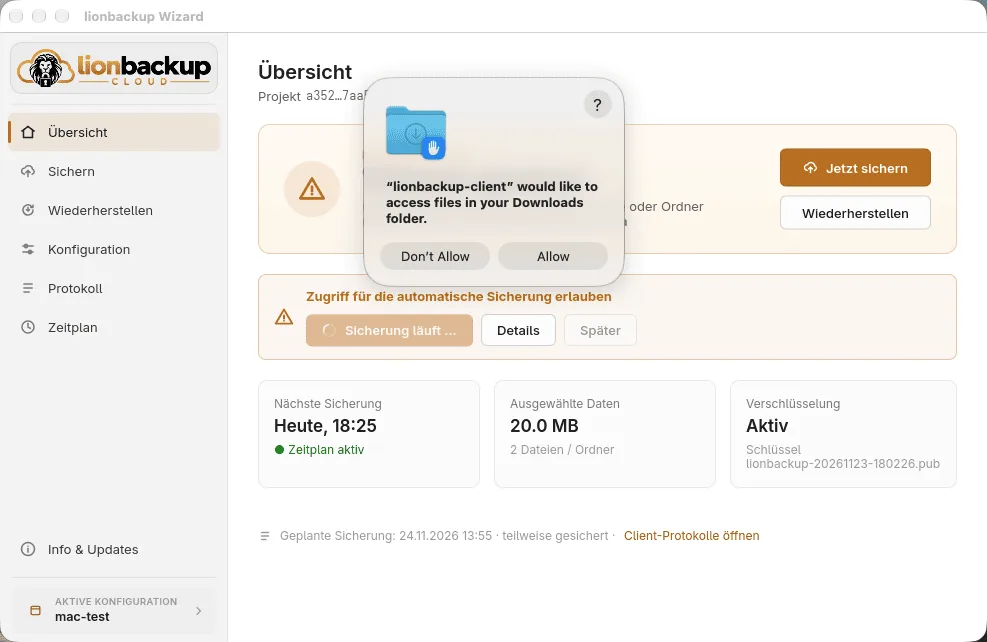
So the wizard shows the hint Allow access for the automatic backup in the overview. With Back up now through the schedule the backup runs once through the schedule while you are at the Mac, and you answer Allow. After a client update macOS asks again, and the hint comes back.
And if you don’t allow it?
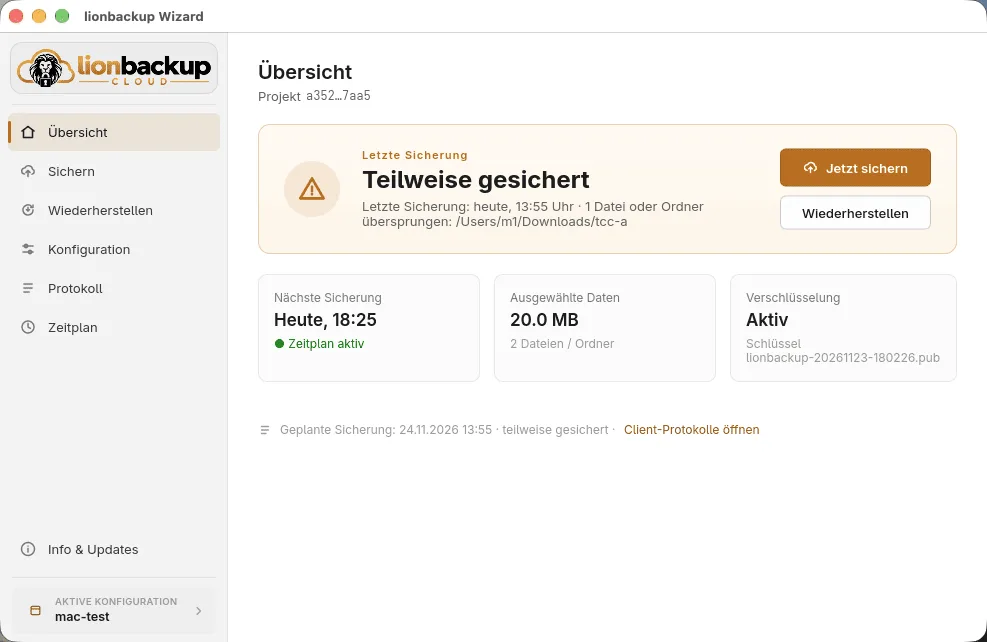
Then the client skips that folder and backs up everything else. Instead of a failed backup, the overview shows Partly backed up and names the folder that is missing.
Restore with Finder tags
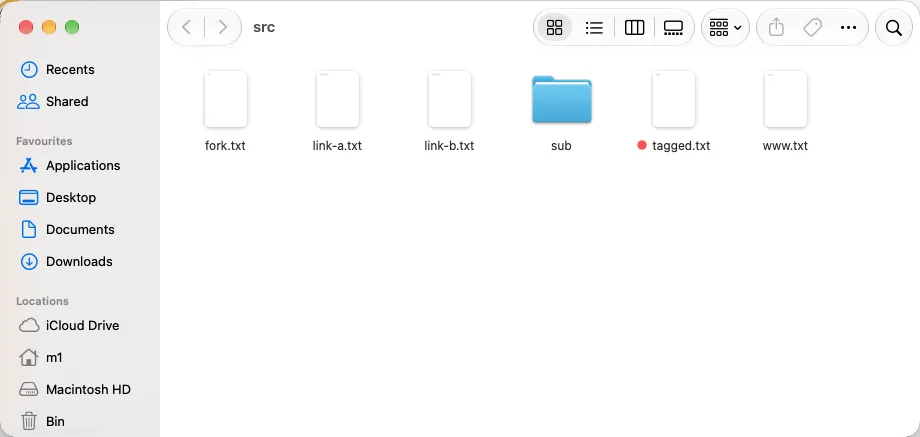
You pick a backup from the list as usual. Along with the files come their Finder tags and other extended attributes, plus hard links, modification times and permissions. If you restore as root, owner and group come back too.
What is still missing
Two things you will notice on the first start:
- Not notarized by Apple yet. You therefore allow the first start under System Settings → Privacy & Security with Open Anyway.
- No app bundle yet. The Dock shows a generic app icon.
Availability
The lionbackup client for the command line is available for the Mac today as a beta. When you create a token in the portal, choose macOS (Beta) as the operating system, and the portal shows you the commands to download, verify and set it up.
We release the wizard for the Mac as soon as a customer wants to use it. Until then there is no public download.