

Back up Hyper-V VMs without shutting them down
From lionbackup client 0.2.0 on, you only list the names of your VMs under hyperv:. The client finds every file by itself, takes a consistent state through the Hyper-V writer and backs it up to the cloud, encrypted. You do not have to shut the VMs down for it.
Published 13 November 2026 · lionbackup client 0.2.0 or later
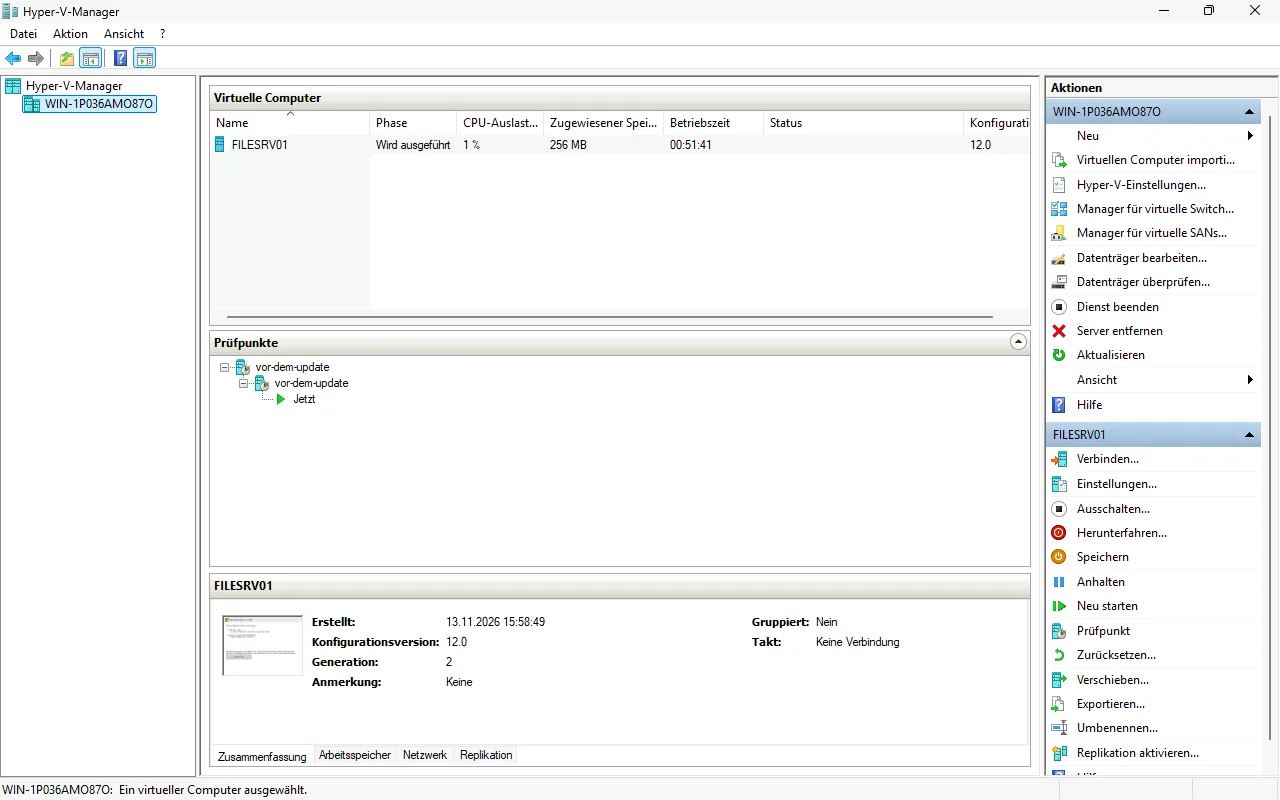
A VM is more than a .vhdx
A Hyper-V VM consists of files in several places: its configuration (.vmcx, .vmrs, .vmgs) under “Virtual Machines”, the virtual disks somewhere on the host, and for every checkpoint a differencing disk (.avhdx) that is worthless without its parent. Maintain these paths by hand under files: and the next checkpoint adds an .avhdx you forget, and the restored VM no longer boots.
Then there is the lock: a running VM holds its disks open exclusively. Until now the client read them from a shadow copy without VSS writers. That worked, but only crash-consistent, as if someone had pulled the VM's power cord.
The configuration: just the name
The rest of the configuration stays as it is. What is new is the hyperv: section:
lionbackup:
  environment: prod
  storagezone: "YOUR-STORAGE-ZONE"
  project: "YOUR-PROJECT-UUID"
  token: "YOUR-WRITE-TOKEN"
  hyperv:
    vms:
      - FILESRV01
      - DC01
  encryption_keyfile: C:\lionbackup\key\lionbackup.pub
  tmp_directory: D:\lionbackup\tmp
  log_directory: C:\lionbackup\log
  compression_method: ZSTD
  compression_level: 6
  resume: true
require_https: trueThe names are the ones Get-VM shows. With "*" instead of a list, the client backs up every VM on the host. files: may sit next to it, for shares on the host for example, or be left out.
Put tmp_directory on a volume with enough room: the client first writes each VM there, compressed and encrypted, and then uploads it.
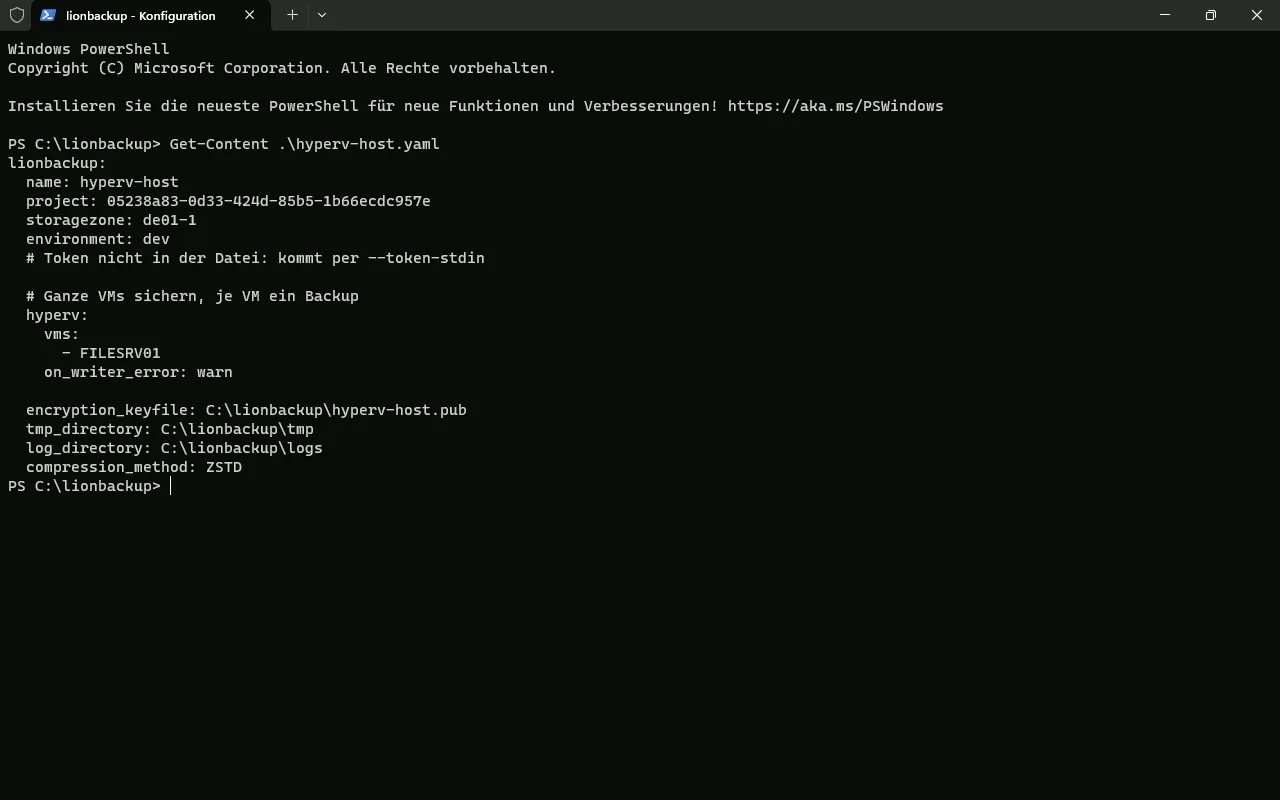
hyperv: section with FILESRV01. The token is not in the file; it comes via --token-stdin.What happens on every run
- Ask Hyper-V. For every VM the client fetches the current list of its files: configuration, checkpoints and every disk with its
.avhdxchain. A new checkpoint is included on the next run by itself. - Shadow copy with the Hyper-V writer. Using DiskShadow, a tool that ships with Windows Server, the client creates a shadow copy with the Hyper-V writer involved. It excludes all other VSS writers. Hyper-V holds each VM at a consistent point for that moment.
- Read, compress, encrypt. Data is read from the shadow copy, exactly the files the Hyper-V writer names. They include a checkpoint that Hyper-V creates only for the duration of the backup. Every VM becomes a backup of its own, compressed and end-to-end encrypted on the host before a single byte leaves the machine.
- Upload, then complete. Only once the upload has succeeded does the client report the backup as complete, and Hyper-V records it. If the run fails, it reports the abort instead.
Online or offline
How Hyper-V holds the VM depends on the guest. With the “Backup (volume shadow copy)” integration service running in the guest, it is an online backup: the VM keeps running, and the applications in the guest, such as SQL Server or Active Directory, become consistent through their own VSS. Without that service, Hyper-V backs up offline: the VM is briefly put into a saved state. In neither case does it have to shut down. The log says which case applied.
DiskShadow only knows full VSS backups. Applications in the guest therefore treat a successful online backup like any full backup at host level.
If the client aborts hard, for example because someone ends the task, DiskShadow notices within seconds, reports the abort and deletes the shadow copies. The VM leaves the “backup in progress” state right away.
To try it out, start a run by hand in PowerShell as administrator:
C:\lionbackup\bin\lionbackup-client.exe --config C:\lionbackup\conf\hyperv.yaml --progress-barThe token does not have to be in the configuration. With --token-stdin the client reads it from standard input, for example from a file only administrators can read. That way it is neither in the configuration nor on the command line, and that is how our test ran. The usual way remains token: in the configuration.
Get-Content C:\lionbackup\secret\write-token.txt | C:\lionbackup\bin\lionbackup-client.exe --config C:\lionbackup\conf\hyperv.yaml --token-stdin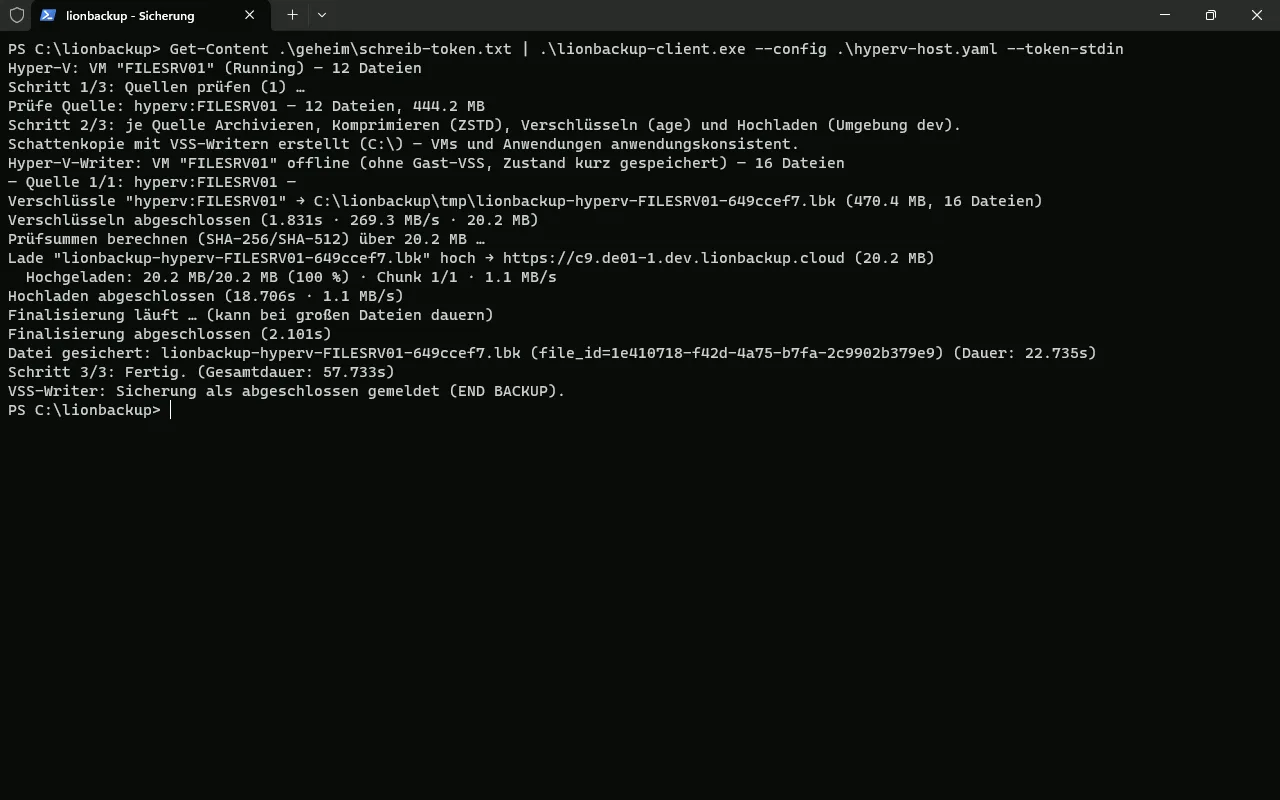
Every night, even with nobody logged on
In production the run belongs in Task Scheduler. It needs administrator rights, because only an administrator may create shadow copies. Under the SYSTEM account with highest privileges the task also runs when nobody is logged on:
Register-ScheduledTask -TaskName "lionbackup Hyper-V" -Action (New-ScheduledTaskAction -Execute 'C:\lionbackup\bin\lionbackup-client.exe' -Argument '--config C:\lionbackup\conf\hyperv.yaml') -Trigger (New-ScheduledTaskTrigger -Daily -At 22:00) -User 'SYSTEM' -RunLevel HighestGetting it back: restore and Import-VM
You restore a VM's backup like any other, with a read token and your private key. A complete test with a simulated total loss is in Restoring a Hyper-V VM from the cloud. In short:
C:\lionbackup\bin\lionbackup-client.exe --config C:\lionbackup\conf\restore.yaml --list
C:\lionbackup\bin\lionbackup-client.exe --config C:\lionbackup\conf\restore.yaml --restore YOUR-FILE-ID --identity E:\lionbackup.key --target D:\RestoreD:\Restore\FILESRV01 then holds “Virtual Machines”, “Virtual Hard Disks” and “Snapshots”, laid out like a Hyper-V export. Compare-VM first checks whether Hyper-V can take the VM over as it is; the list of incompatibilities should be empty. Import-VM then creates it as a copy with a new ID, so an original VM that still exists stays untouched. Finally, remove the checkpoint that Hyper-V created only for the backup:
$target = 'D:\Restore\FILESRV01'
$cfg  = Get-ChildItem "$target\Virtual Machines\*.vmcx" | Select-Object -First 1
$report = Compare-VM -Path $cfg.FullName -Copy -GenerateNewId `
  -VhdSourcePath "$target\Virtual Hard Disks" `
  -VirtualMachinePath 'D:\Hyper-V\FILESRV01-restore' `
  -VhdDestinationPath 'D:\Hyper-V\FILESRV01-restore\Virtual Hard Disks' `
  -SnapshotFilePath 'D:\Hyper-V\FILESRV01-restore'
$report.Incompatibilities | Format-List Message   # should be empty
$vm = Import-VM -CompatibilityReport $report
# Remove the checkpoint Hyper-V created only for the backup:
Get-VMSnapshot -VM $vm -SnapshotType Recovery | Remove-VMSnapshot
Rename-VM -VM $vm -NewName 'FILESRV01-restored' # optionalThe disks of the imported VM then point to the copy under D:\Hyper-V\FILESRV01-restore, not to the originals.
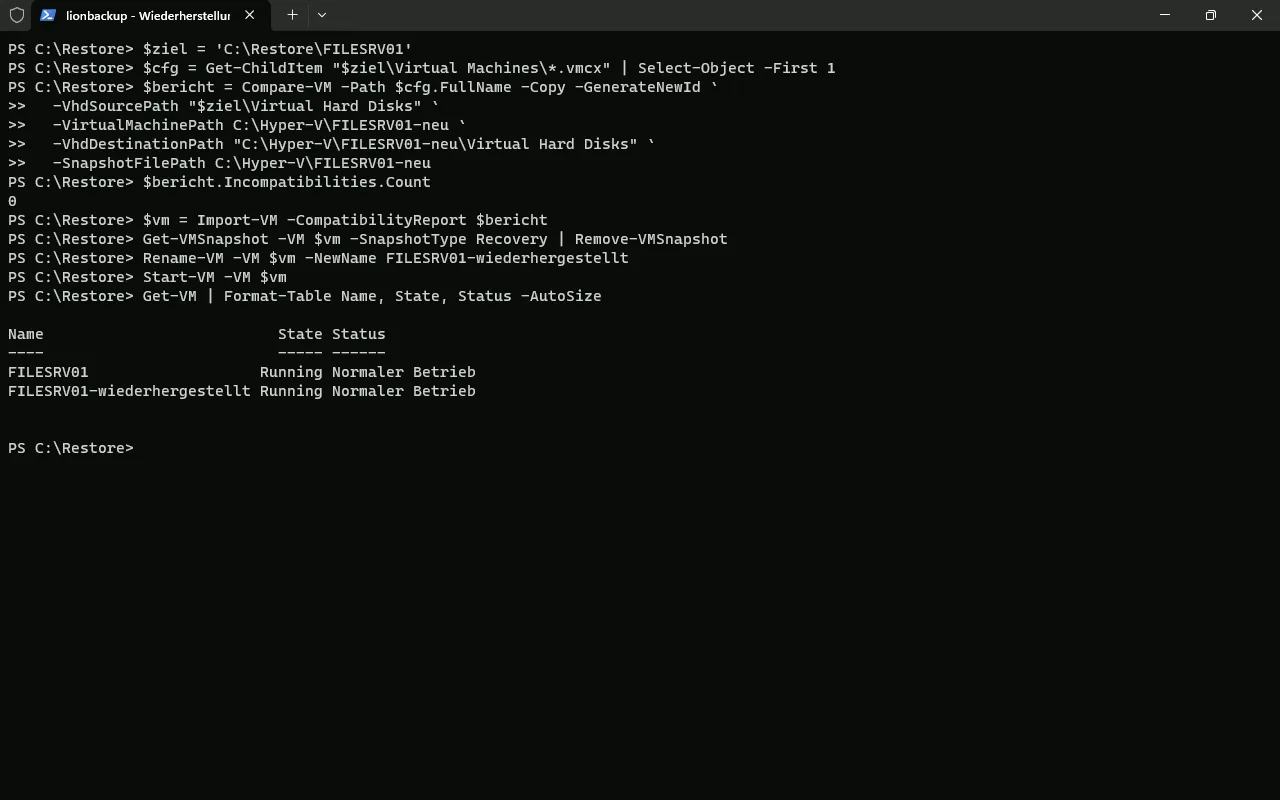
Compare-VM reports 0 incompatibilities, Import-VM creates the copy. Afterwards the original and the copy both run normally.Requirements and limits
| Item | What applies |
|---|---|
| Host | Windows Server 2025 or 2022 with the Hyper-V role; we tested on 2025. |
| Rights | The client runs as administrator, for example as a scheduled task under SYSTEM. The shadow copy (use_vss) stays switched on. |
| Without DiskShadow or on writer error | DiskShadow is a Windows Server tool. Without it, or if the writer fails, the client backs up VMs only crash-consistent and warns. With on_writer_error: abort it aborts instead. |
| Where the VMs live | Local volumes of a standalone host. Cluster Shared Volumes, SMB shares, pass-through disks and VHD Sets are rejected with a message instead of being skipped silently. |
| Scope | Every run is a full backup of the whole VM. The default limit is 100 GB per backup and can be raised on request. |
What we tested
On Windows Server 2025 with Hyper-V: a running VM with a chain of checkpoints, a real upload to our dev environment, the backup as a scheduled task under SYSTEM, a hard abort of the client, and a complete restore from the cloud with complete data. How that went is shown in Restoring a Hyper-V VM from the cloud. The dev environment is our test environment; your backups run in prod. The test VM had no guest operating system, so Hyper-V backed it up offline.
We have not yet checked an online backup with a real guest ourselves. Windows Server 2022 also ships DiskShadow and the Hyper-V writer; our own tests there will follow.
Special cases: commands before and after the backup
For cases hyperv: does not cover, client 0.2.0 also runs commands of your own. One example is a VM you would rather shut down cleanly for the backup: pre_backup shuts it down, post_snapshot starts it again as soon as the shadow copy exists, and the client then reads from the snapshot.
lionbackup:
  files:
    - D:\Hyper-V\LEGACY01
  hooks:
    pre_backup:
      - 'powershell -NoProfile -Command "Stop-VM -Name LEGACY01"'
    post_snapshot:
      - 'powershell -NoProfile -Command "Start-VM -Name LEGACY01"'
timeout_sec: 3600Put the commands in single quotes and double any ' inside. Otherwise a colon followed by a space or a # in the command breaks the YAML. --validate shows such errors with their line number.
pre_backupruns before anything else. If a command fails, the run backs up nothing.post_snapshotruns as soon as the shadow copy exists. Without a shadow copy, only once all data has been read.post_backupalways runs at the end, even after an error.
In the same way you can export a VM with Export-VM first and back up the export under files:.
Availability
The hyperv: section and the commands before and after the backup ship with lionbackup client 0.2.0. Get the client from Downloads; the source code is public in our repository. Everything else about backing up Windows Server is on Windows Server cloud backup, and how lionbackup protects your data on the security page.
May we support you?
We will gladly set up the backup of your Hyper-V host together with you: free of charge, by video call.