

Restoring a Hyper-V VM from the cloud: a complete restore test
A backup is only worth something if the restore works. So we tried it: we deleted a Hyper-V VM, brought it back from the cloud, imported it into Hyper-V and checked the data. All screenshots come from this test on 13 November 2026 on Windows Server 2025.
Published 13 November 2026 · lionbackup client 0.2.0 or later
The starting point is the test VM FILESRV01 from Back up Hyper-V VMs without shutting them down: a running VM with two checkpoints and 300 documents in a share. The lionbackup client 0.2.0 backed it up to our dev environment; you follow the same steps against prod. The screenshots show a German Windows Server and the client's German output.
Which backups are there?
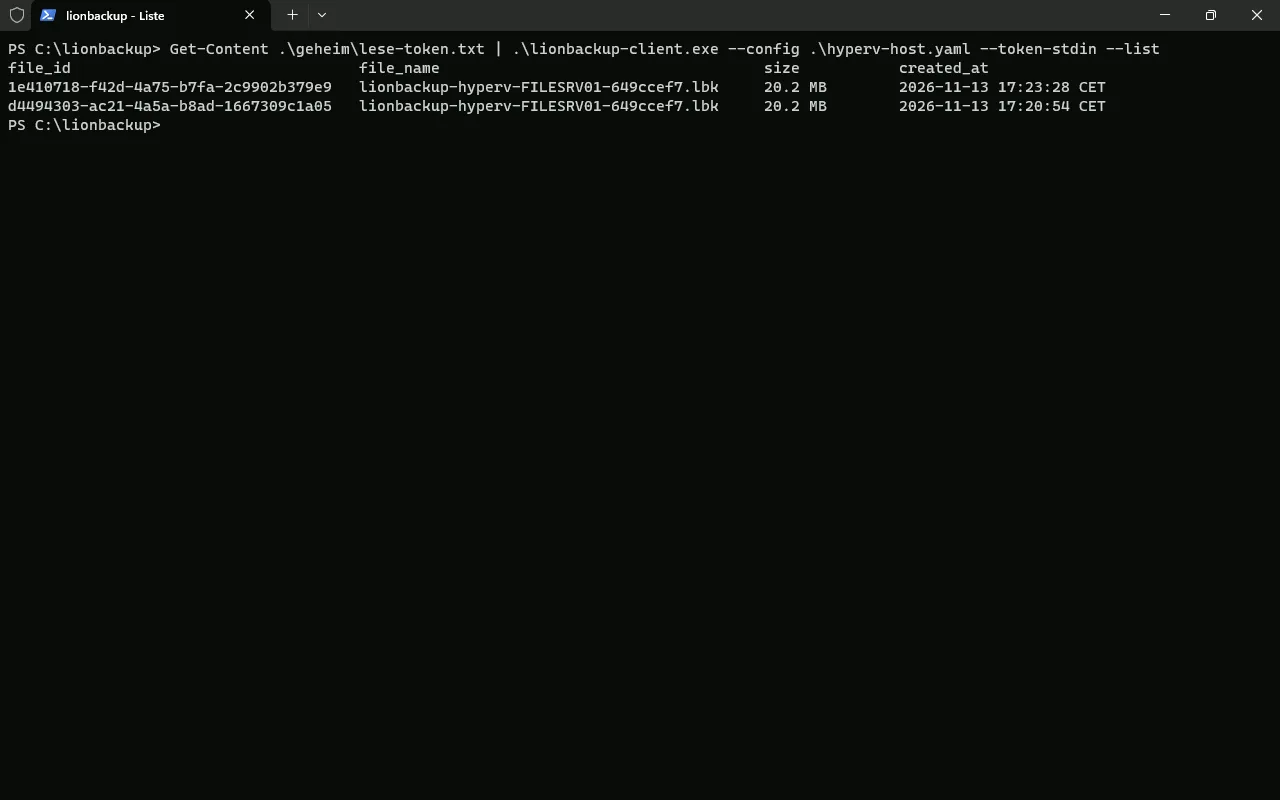
Listing and restoring use the read token. The write token the host backs up with cannot do that, and that is deliberate: whoever steals it gets no data. Here too the token comes from a file only administrators can read:
Get-Content .\secret\read-token.txt | .\lionbackup-client.exe --config .\hyperv-host.yaml --token-stdin --listThe list shows two backups of FILESRV01, 20.2 MB each, with file_id and time.
Simulating a total loss
Then the emergency: switch the VM off, remove it from Hyper-V and delete its folder with all disks. Afterwards Hyper-V knows no VM, and nothing is left on disk.
Stop-VM -Name FILESRV01 -TurnOff -Force
Remove-VM -Name FILESRV01 -Force
Remove-Item C:\Hyper-V\FILESRV01 -Recurse -Force
Get-VM
Test-Path C:\Hyper-V\FILESRV01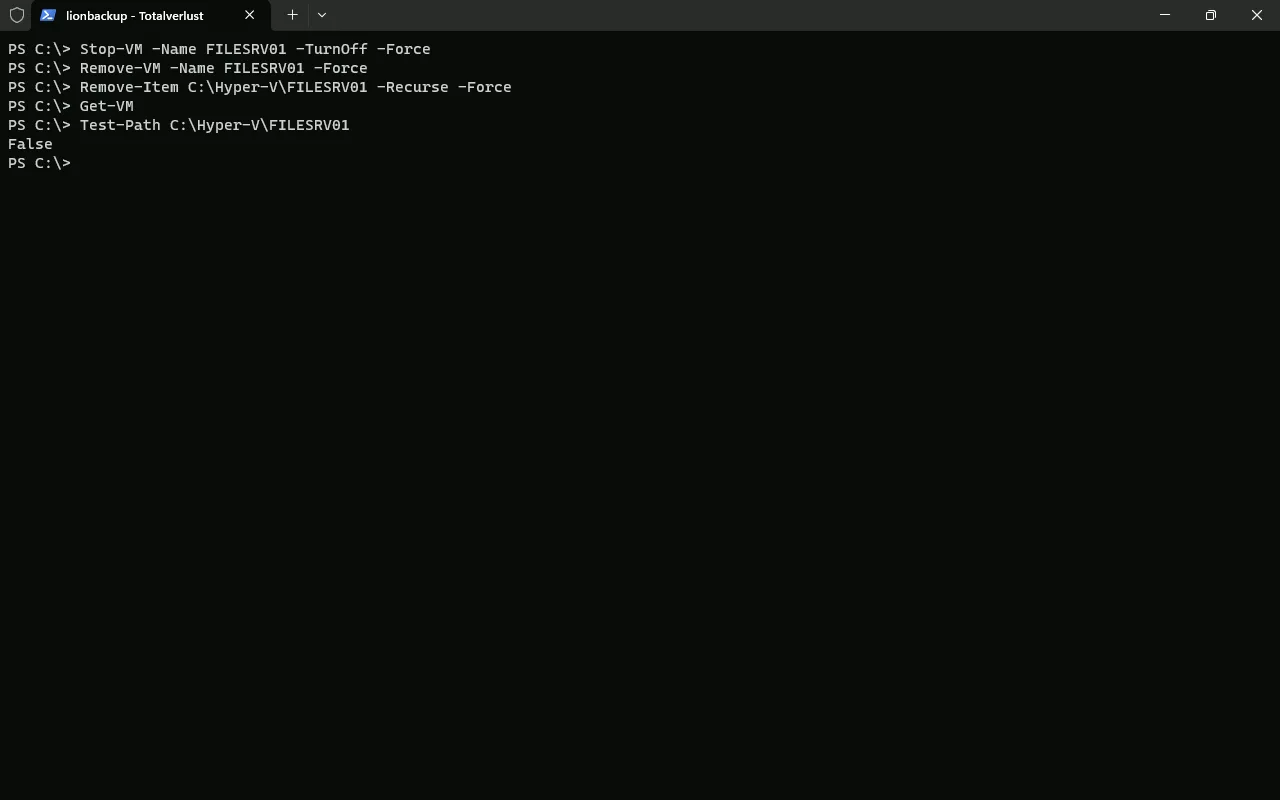
Bringing it back from the cloud
The restore needs three things: the read token, the file_id from the list and the private key. Only you have the key; without it nobody can read the backup, not even us.
Get-Content .\secret\read-token.txt | .\lionbackup-client.exe --config .\hyperv-host.yaml --token-stdin `
--restore YOUR-FILE-ID --identity .\secret\hyperv-host.key --target C:\RestoreThe client downloads the backup, checks and decrypts it and unpacks it to C:\Restore. The metadata names the source: hyperv:FILESRV01. Afterwards there are 16 files there, 493 MB in total, laid out like a Hyper-V export.
In the test this took 2.1 seconds, for a small VM that is 20.2 MB packed. For large VMs the time depends on their size and your bandwidth; this number does not carry over.
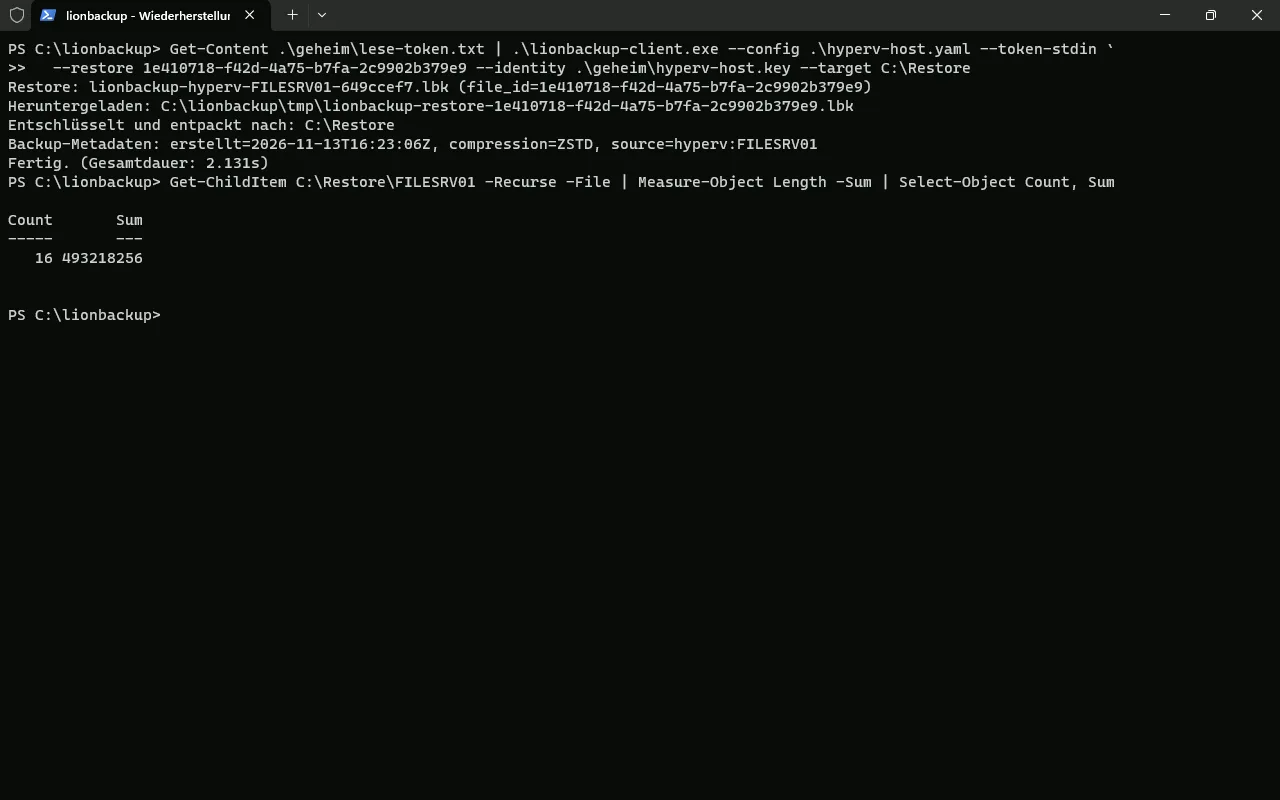
C:\Restore, then 16 files, 493 MB.Importing into Hyper-V
The import is a PowerShell step. Since the original VM is gone, the copy goes back to the old location C:\Hyper-V\FILESRV01. Compare-VM first checks whether Hyper-V can take it over: 0 incompatibilities. Then you remove the checkpoint Hyper-V created only for the backup. Your own two checkpoints, “vor-dem-update”, are back.
$target = 'C:\Restore\FILESRV01'
$cfg  = Get-ChildItem "$target\Virtual Machines\*.vmcx" | Select-Object -First 1
$report = Compare-VM -Path $cfg.FullName -Copy -GenerateNewId `
  -VhdSourcePath "$target\Virtual Hard Disks" `
  -VirtualMachinePath 'C:\Hyper-V\FILESRV01' `
  -VhdDestinationPath 'C:\Hyper-V\FILESRV01\Virtual Hard Disks' `
  -SnapshotFilePath 'C:\Hyper-V\FILESRV01'
$report.Incompatibilities.Count
$vm = Import-VM -CompatibilityReport $report
Get-VMSnapshot -VM $vm -SnapshotType Recovery | Remove-VMSnapshot
Get-VMSnapshot -VM $vm | Format-Table Name, SnapshotType -AutoSize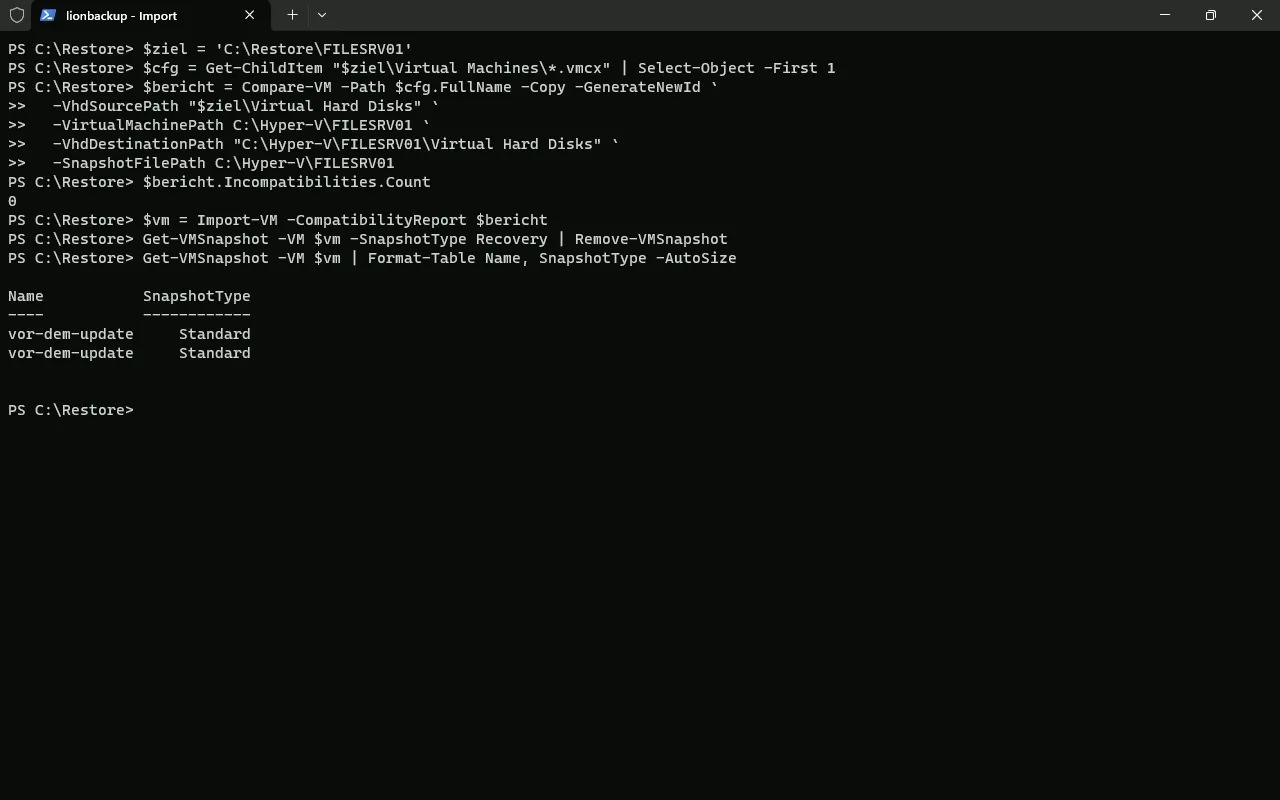
Is the data right?
A VM that boots is not yet proof. So before starting it we mounted its disk read-only and counted: the 300 documents of the test data in Freigaben\Buchhaltung, and a sample, beleg-123, with the expected content. Then dismount the disk and start the VM.
$disk = (Get-VMHardDiskDrive -VMName FILESRV01).Path
$drive = (Mount-VHD -Path $disk -ReadOnly -Passthru | Get-Disk | Get-Partition | Where-Object DriveLetter).DriveLetter
(Get-ChildItem "${drive}:\Freigaben\Buchhaltung").Count
(Get-Content "${drive}:\Freigaben\Buchhaltung\beleg-123.txt" -Raw).Substring(0, 36)
Dismount-VHD -Path $disk
Start-VM -Name FILESRV01
Get-VM | Format-Table Name, State, Status -AutoSize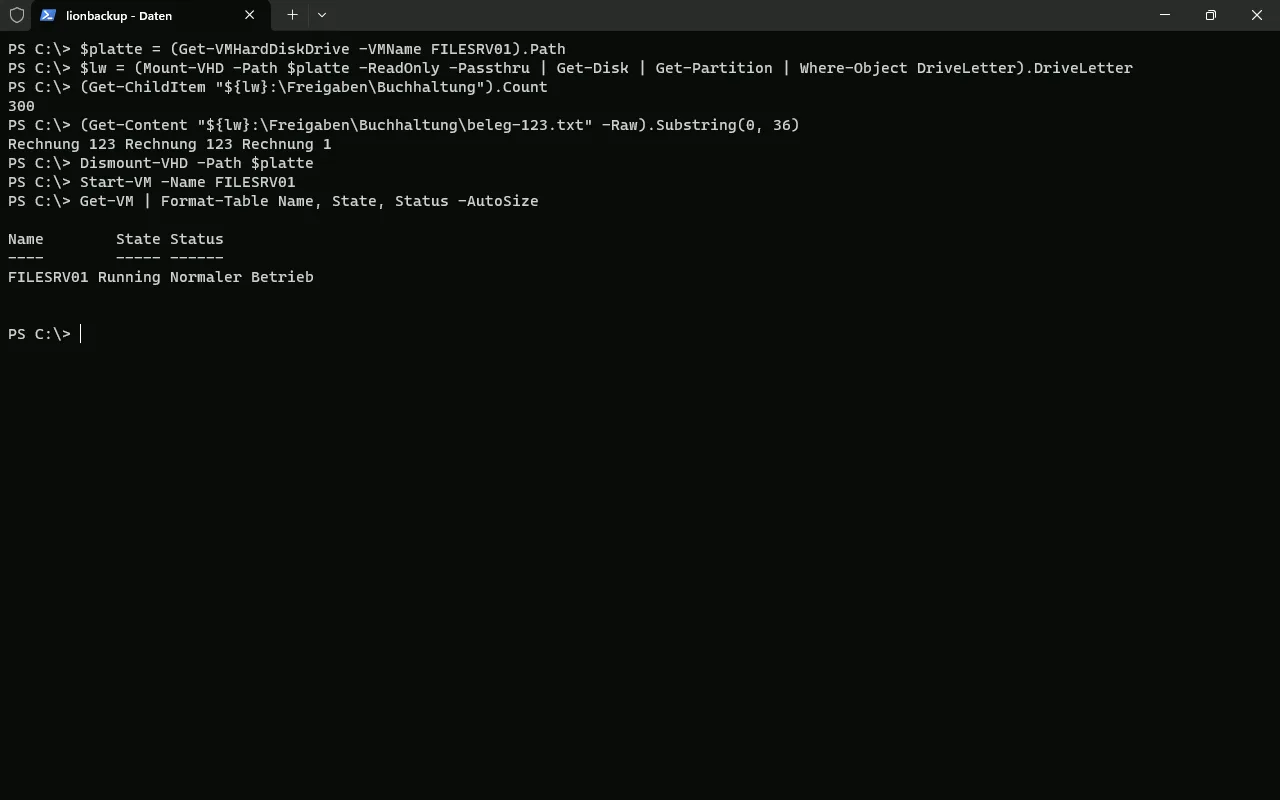
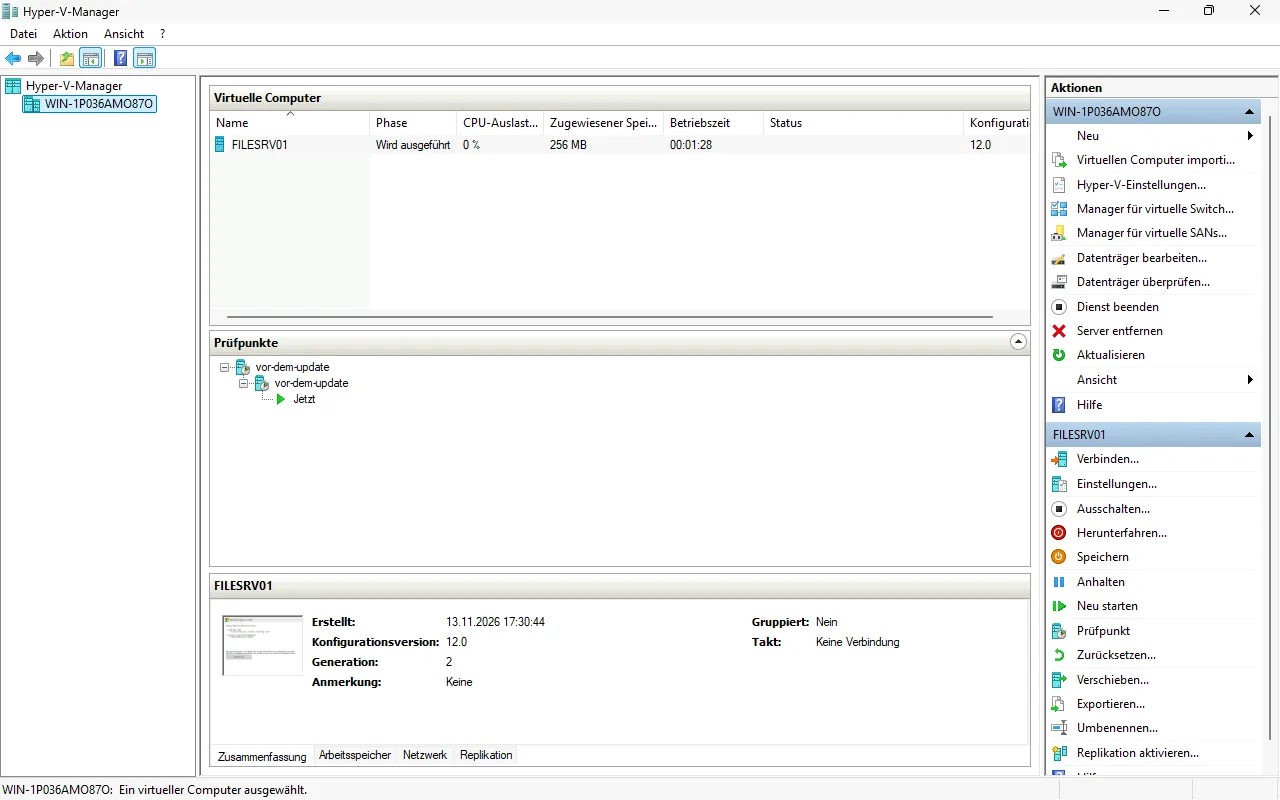
FILESRV01 is running normally again, shown in Hyper-V Manager with its complete chain of checkpoints. It was created on 13 November 2026 at 17:30:44, at the import.
What this test shows and what it does not
- The test VM had no guest operating system. Hyper-V therefore backed it up offline; we have not yet checked an online backup with a real guest ourselves.
- The import into Hyper-V is a PowerShell step and not part of the lionbackup Wizard.
- Every backup is a full backup of the whole VM, so each one in the list can be restored on its own.
- The 2.1 seconds apply to this small test VM only.
Test your restore regularly. You can do that without touching the original VM: with -GenerateNewId and a different target path, as shown in Back up Hyper-V VMs without shutting them down.
May we support you?
We will gladly run your first restore test together with you on your Hyper-V host: free of charge, by video call.